
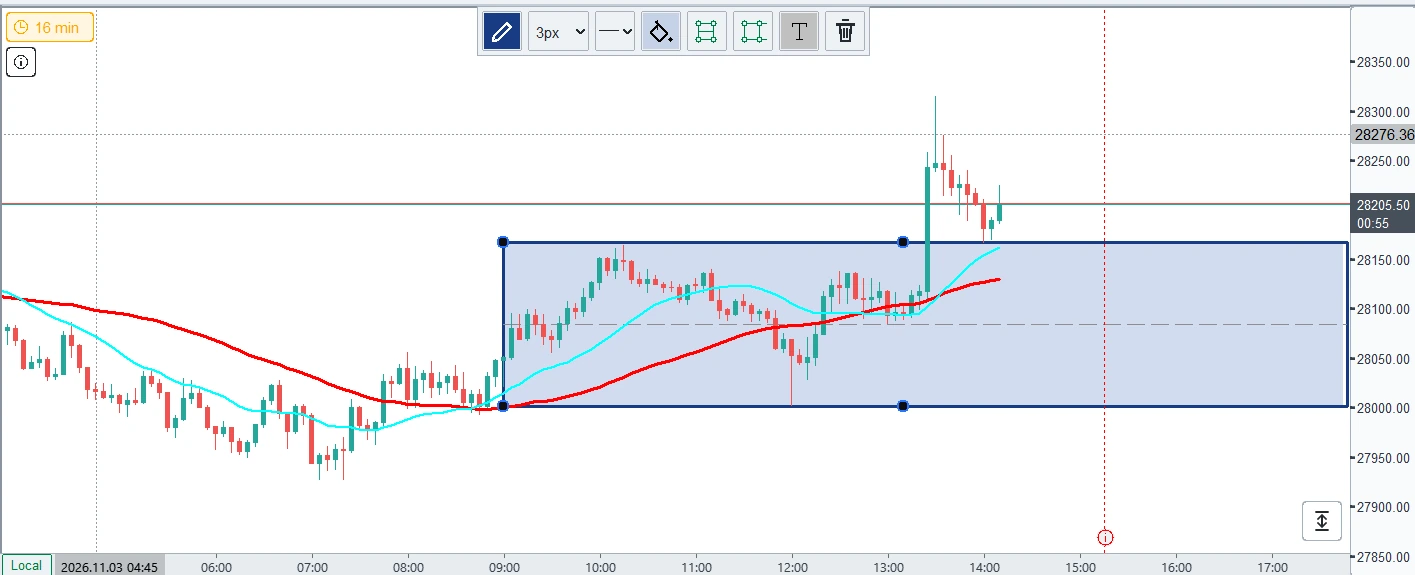
Select a drawing to open its floating toolbar. Lines, horizontal lines, rays and boxes use familiar appearance controls so you can work beside the chart.
Choose colour and line style
Open the colour palette, choose a colour, and use the style or thickness menu to change the outline. A completed appearance edit closes its child menu while keeping the drawing selected, so you can continue configuring it.
Highlight an area with a box
Draw a rectangle around the area you want to mark. Use the fill control and opacity percentage to let the candles show through. The toolbar also contains the box’s middle-line and extension controls.
Move, resize or remove
Use the blue handles to adjust endpoints or corners. Drag the drawing itself to reposition it, or select it and press Delete when it is no longer useful. Click an empty part of the chart to finish and deselect.
The Updates page lists recent drawing fixes, including font-size selection in v235.
Join the conversation.
Comments are reviewed before appearing. Your email is never displayed.